How to Remove a Gmail Tracking Extension Safely
Remove the extension, free the device slot and keep your history. A safe step-by-step uninstall.
The short answer
You can remove the Track My Mails extension in under a minute and nothing in Gmail breaks. Emails you already sent are not changed, your account and dashboard stay as they are, and you can reinstall later and sign in again. Removing the extension only stops tracking for emails you send from now on.
Before you remove it
Decide what you actually want. These are three different goals, and each has a different action:
- You want to pause tracking for a while: turn the tracking badge off in the compose window, or switch the extension off in your browser. You do not need to remove anything
- You want to stop tracking on this computer: remove the extension, as described below
- You want to delete your data or your account: removing the extension does not do that. Use the delete options in your dashboard, described further down
How to remove the extension in Chrome, Edge or Brave
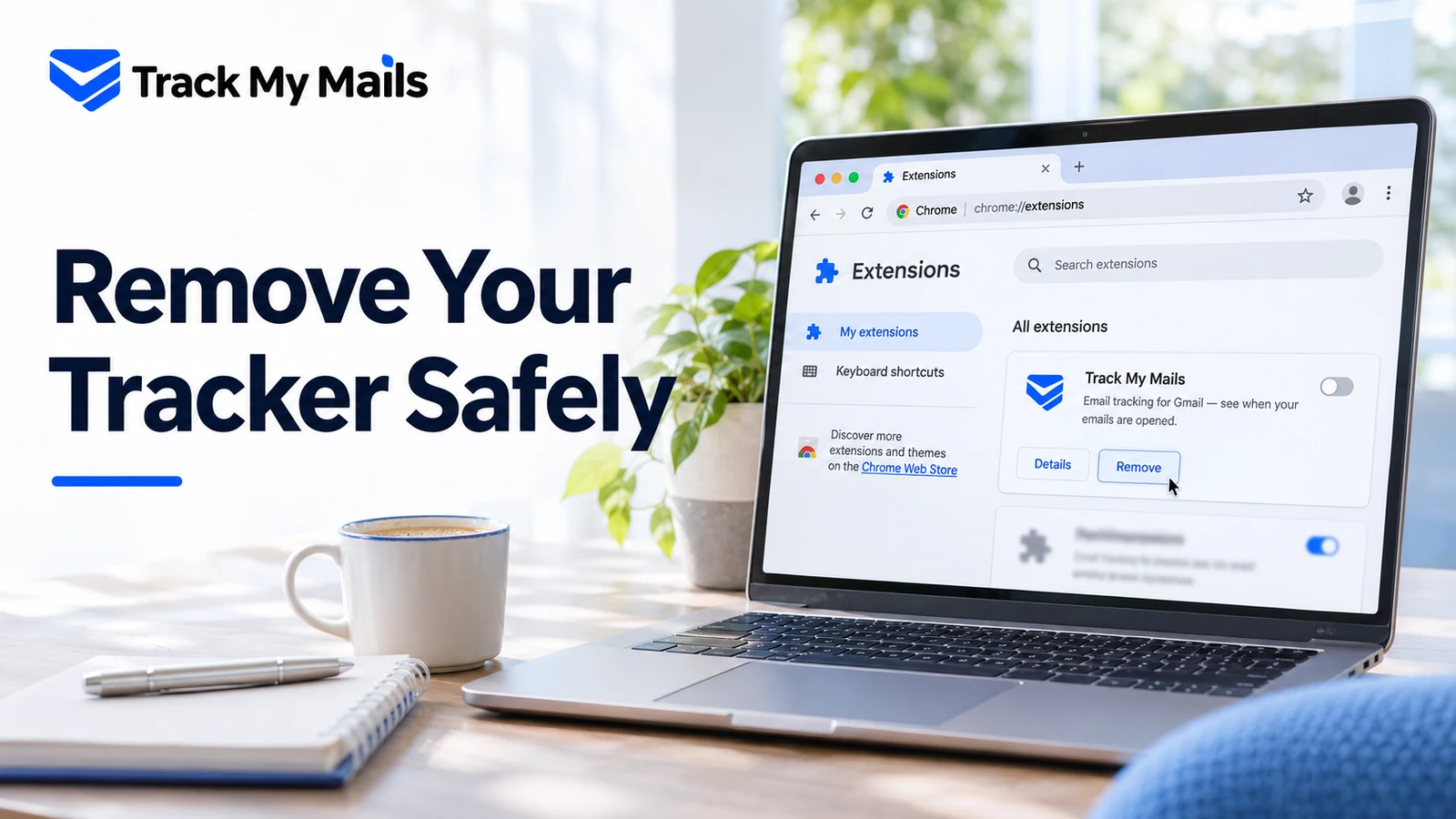
Click the puzzle-piece icon in the browser toolbar, find Track My Mails and open its three-dot menu. Choose Remove from Chrome (or Remove from Edge or Brave) and confirm. You can also open chrome://extensions, find Track My Mails and press Remove.
Reload Gmail afterwards. The small tracking badge next to the Send button and the ticks in your Sent folder disappear, and Gmail looks exactly like a normal Gmail again.
What happens to emails you already sent
The tracking image inside an email you sent lives in the message itself and points to our server, not to your browser. So if a recipient opens an old email after you remove the extension, the open is still recorded and shows in your dashboard, because the record is kept on your account. Tracked links in those emails also keep redirecting to their destination.
What you lose is the display inside Gmail: without the extension there are no ✓ or ✓✓ ticks in your Sent folder. Use the dashboard to see activity instead.
Free up the device slot if you will connect another browser
Each account can connect the extension on a limited number of browsers: one on Free, Pro, Lifetime and Team seats, two on Plus plans and three on Max plans. If you are moving to a new computer, open Settings in your dashboard and remove the old device so you can connect the new one.
If you want your data gone too
In the dashboard you can delete individual emails, which removes their tracking records right away. If you want to close your account completely, use the delete account option in your account settings. Note that if you pay for a subscription, cancel it first or check the confirmation message: account deletion is designed so that you are never left being charged without an account.
Track My Mails never reads or stores the body or attachments of your emails, so there is no message content to delete. What we keep is the recipient, send time, subject line, opens and clicks, so you can recognise your own emails in the dashboard.
A worked example
Say you are replacing an old laptop. On the old one you remove the extension. In Settings you delete that device from the list, install the extension on the new laptop, sign in with Google and press Connect this browser. An email you sent last week from the old laptop is opened by a client yesterday, and the open shows up on your dashboard as usual, because nothing about that email depended on the old browser. Only the emails you write from now on need the new connection.
Common mistakes
People usually trip on the same few points:
- Expecting removal to delete history. It does not. Delete emails or the account for that
- Forgetting to free the device slot, then seeing a device limit message on the new computer
- Removing the extension while a subscription is active and assuming billing has stopped. Cancel separately from Plans and billing
- Not reloading Gmail afterwards, so the old ticks stay on screen until the page refreshes
Putting it into practice
If you are removing the extension because of a problem rather than a decision to stop, try reconnecting first. Many issues that look like a broken extension are a lost connection, an outdated version or a Gmail tab that was never reloaded, and all of those are fixed in a minute without removing anything. Remove it when you truly do not want tracking on that computer, and keep your account if you may come back. Your history is safe and the setup takes about two minutes the next time.
Coming back later
Reinstall the extension from the Chrome Web Store, click its icon, sign in with Google and press Connect this browser. There is no key to enter. Your older emails and history are still in the dashboard.
Frequently asked questions
Will removing the extension delete my tracking history?
No. Your history stays in your dashboard until you delete emails or your account.
Will old emails keep tracking after I remove it?
Yes. The tracking image inside a sent email points to our server, so later opens are still recorded. Only new emails stop being tracked.
Is there any leftover code in my Gmail after removal?
No. The extension only runs inside your browser. After removal, Gmail is plain Gmail again.
Can I just turn tracking off instead of removing it?
Yes. Use the badge next to Send to switch tracking off for one email, or disable the extension in your browser to pause it.
Track your next Gmail with context
See sent status in Gmail and review opens, timestamps, and link clicks in one dashboard.
Start with Google