What to Do When Opens Stop Updating
When opens stop updating: check the connection, the browser and notification permissions in order.
The short answer
If opens that used to appear have stopped, work out whether the problem is the display, the connection or the signal. Reloading Gmail and checking the dashboard answers the first question in seconds. Most of the time the extension has simply lost its connection, is out of date, or the recipient’s side is not loading images.
Step 1: Find out where it is stuck
Compare three places, because each points to a different cause:
- The ticks in Gmail’s Sent folder
- The email’s page in the dashboard, with its timeline
- Your alerts and notifications
How to read the result
If the dashboard shows the new opens but Gmail shows old ticks, it is a display problem: reload Gmail, check that the extension is enabled, and make sure you are looking at the account that sent the email. If the dashboard does not show new opens either, the signal is not arriving. If the dashboard is right but there are no alerts, check your notification settings.
The dashboard refreshes by itself while it is open. It checks for new activity about every 30 seconds while the tab is visible, and immediately when you come back to it.
Step 2: Check the connection
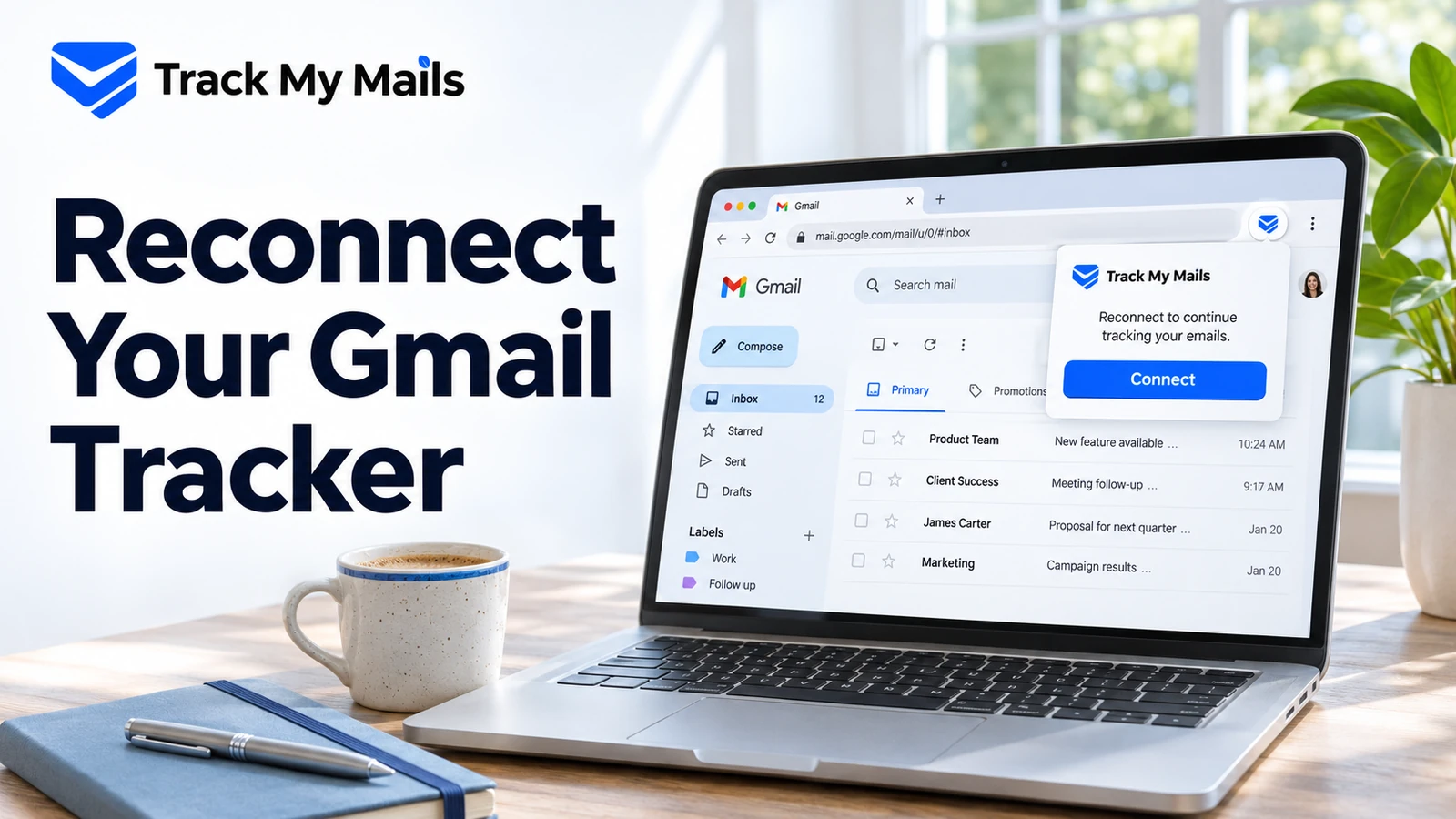
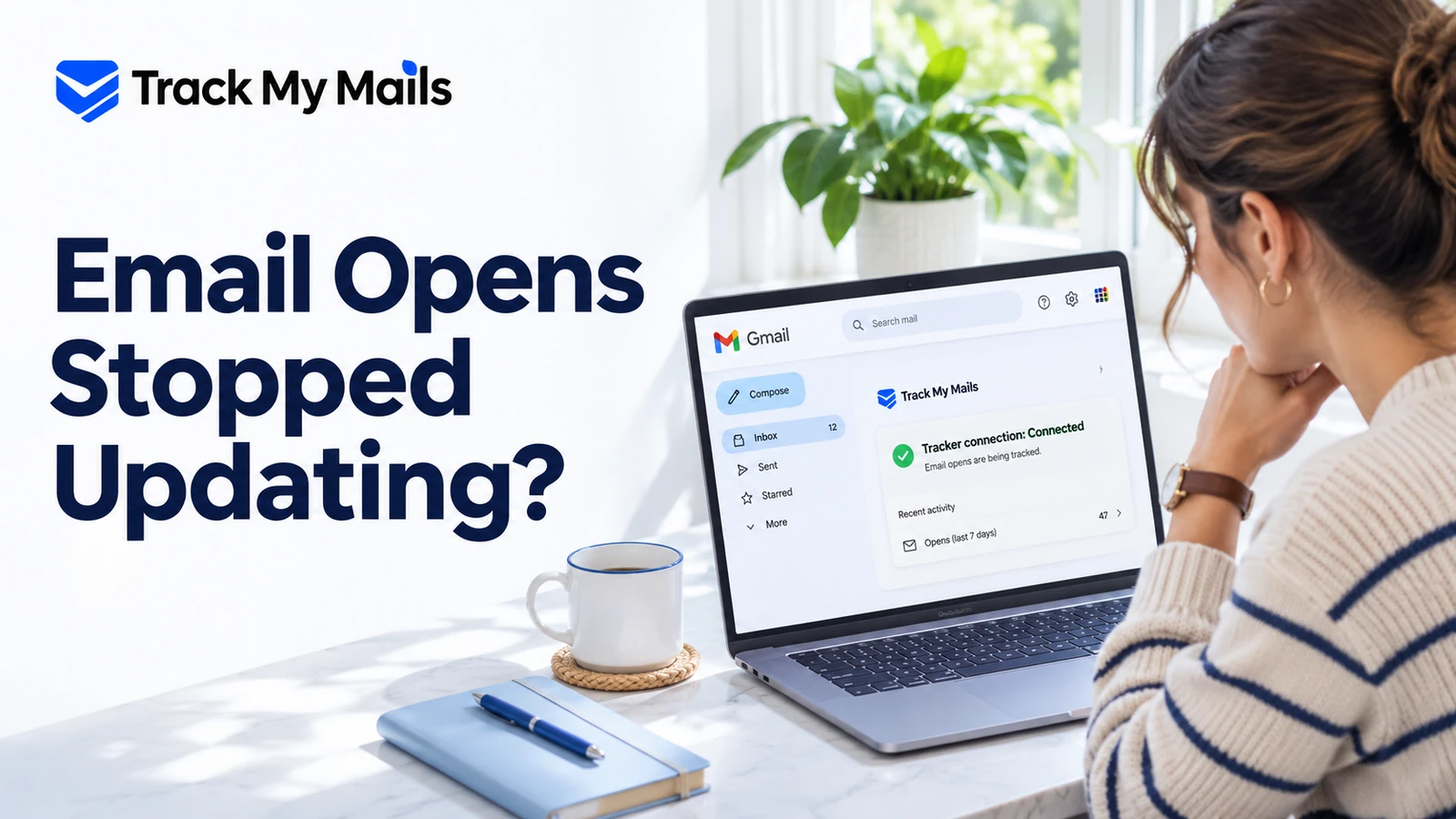
Click the extension icon and check that the browser is connected. If the compose badge says “Not connected”, click it and press Connect this browser. Also look in Settings to make sure this device is still in your device list. If it was removed, connect again.
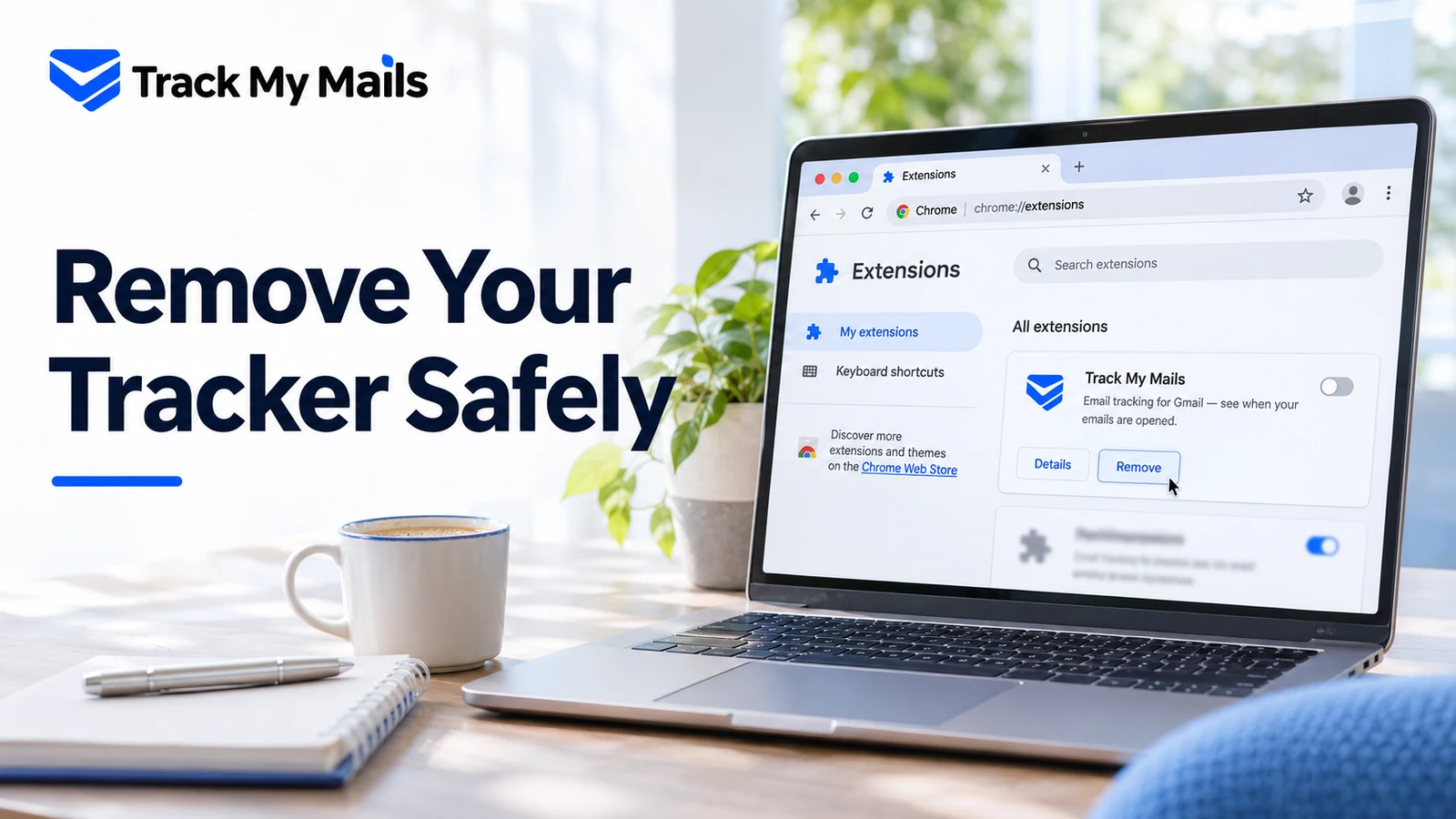
Update the extension too. Open chrome://extensions and press Update, since newer versions fix connection and display problems. Old versions below the supported minimum can stop working properly.
Step 3: Check the recipient’s side
A recipient who stops loading images, switches to a mail app that blocks them, or turns on a privacy feature can stop producing opens for new emails. In that case, the ticks stay single even though your connection is fine. Check for clicks, and try a test with a second address you own, opened from its Inbox after 30 seconds, to prove your own setup.
Step 4: Other causes worth ruling out
A free account that reached the 200-emails limit will send untracked emails, which show no tick at all. Gmail in Plain text mode removes the tracking image. Opens within a few seconds of sending and opens within two minutes of a previous one are merged on purpose. And a paused or flagged account can have tracking slowed, which would show a notice.
A worked example
On Monday your opens appear instantly. On Thursday nothing updates. You reload Gmail, and the badge says “Not connected”, because a browser update cleared the connection. You press Connect this browser, reload again and send a test to your second address. A minute later the tick turns to ✓✓. Emails you sent earlier that week were still recording opens on the server all along, so the dashboard had them even while Gmail showed old ticks.
A five-point checklist
Run through these when updates seem to stop:
- Reload Gmail and look at the badge next to Send
- Open the dashboard and compare it with the Gmail ticks
- Update the extension from chrome://extensions
- Check Settings for your device and any limit notice
- Send a test to a second address and open it from that inbox
Putting it into practice
Work from the simplest explanation to the least likely one. Start with a reload and the connection badge, then the extension version, then the recipient’s side and finally the account notices. Keep a note of what you changed so that, if you do contact support, we can see the sequence at once. In the large majority of cases, the problem is solved in the first two steps and everything resumes without any lost data.
Key points to remember
A short summary you can come back to:
- Compare Gmail ticks, the dashboard and alerts
- Check the connection badge and device list
- Update the extension
- Rule out blocked images and Plain text mode
- Contact Live support with the send time
If it is still stuck
Message us from Live support. Tell us the sender Gmail, the approximate send time and what the dashboard shows, and we can check whether the tracking request arrived.
Frequently asked questions
Why do the Gmail ticks not match the dashboard?
The dashboard is the full record. Ticks only update while Gmail is open with the extension connected, so reload Gmail and check the right account.
How often does the dashboard update?
About every 30 seconds while the tab is visible, and straight away when you return to it or a push notification arrives.
Do I need to keep Gmail open for opens to be recorded?
No. Opens are recorded by our server. Gmail only needs to be open for the ticks to refresh.
My account reached its free limit. Will old opens still update?
Yes. Emails already tracked keep recording opens. New emails go out untracked until the next month or until you upgrade.
Track your next Gmail with context
See sent status in Gmail and review opens, timestamps, and link clicks in one dashboard.
Start with Google