How to Reconnect Your Gmail Tracking Extension
Signed out or ticks stopped? Reconnect the extension with one Google sign-in and get open and click updates working again.
The short answer
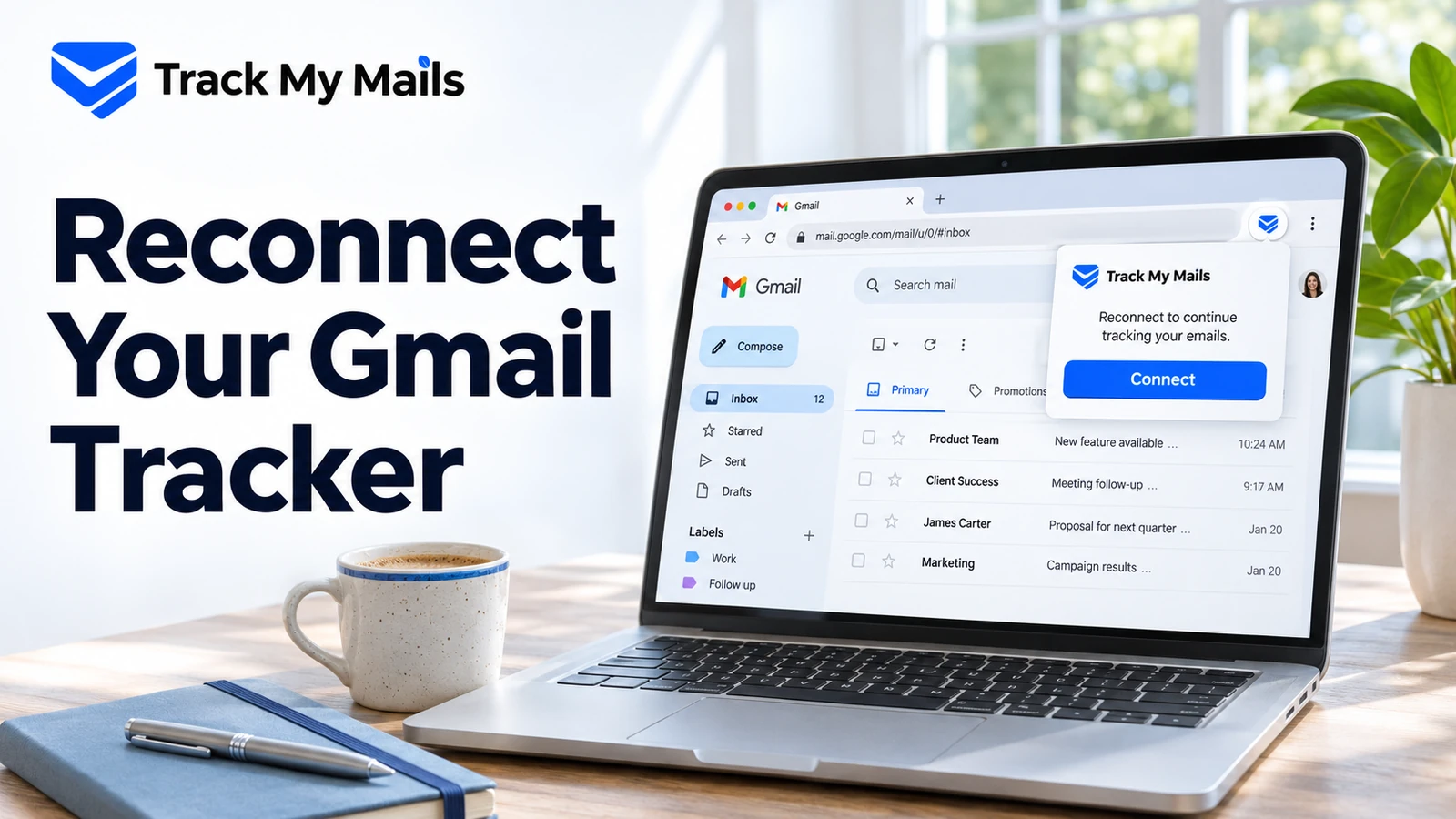
There is no key to reset any more. The extension connects to your account with Google sign-in, so to reconnect, click the Track My Mails icon, sign in with Google and press Connect this browser. Old license keys have been retired and no longer work, which is why a few older guides that mention keys are out of date.
Why you might need to reconnect
You usually only need to reconnect if the extension has lost its link to your account. Typical reasons are:
- The compose badge says “Not connected”
- You signed out, cleared browser data, or reinstalled the extension
- You are using a new browser or a new computer
- An old extension version that still asks for a key
- You removed this browser from the device list in Settings
- The connection was revoked from your dashboard, for example after you changed your device
How to reconnect, step by step
These steps take about a minute and do not need anything copied or pasted:
- Update the extension first. Open chrome://extensions, turn on Developer mode if needed and press Update, or just reinstall it from the Chrome Web Store
- Click the Track My Mails icon in the toolbar and choose Sign in
- Continue with the same Google account you used before. A Track My Mails page opens
- Press Connect this browser on the Connect page
- Reload every open Gmail tab so the badge and the ticks appear
If you see a device limit message
Each account can connect the extension on a limited number of browsers: one on Free, Pro, Lifetime and Team seats, two on the Plus tiers and three on the Max tiers. If you reach the limit, open Settings, remove the device you no longer use and connect again. This limit keeps accounts personal while every Gmail address you use stays covered.
What about an old key?
License keys that started with a prefix such as trk_ are retired for the extension. If a screen or a note still tells you to paste a key, you are looking at an older extension or an out-of-date guide. Update the extension and use the Google sign-in flow instead. Connection keys for AI assistants through the MCP server are separate and are managed on the MCP server page, not here.
A worked example
A user sees “Not connected” in Gmail after a browser update. They click the Track My Mails icon, choose Sign in, continue with Google and press Connect this browser. They reload Gmail, see the badge turn on, and send a test email to their other address. Ten minutes later the Sent folder shows ✓✓. The whole fix took about a minute, with nothing to copy or paste.
Common mistakes
The usual stumbling blocks are small:
- Signing in with a different Google account than the one that holds your history
- Not reloading Gmail after connecting
- Following an old guide that still asks for a key
- Hitting the device limit and not removing the old device in Settings
Putting it into practice
If you reconnect and still see a problem, check the small things first: the Google account you signed in with, the number of connected devices and the extension version. If those look right, send us a message from Live support with a short description and the time of your test email. We can see whether your browser reached our server and tell you what is blocking the connection, so you do not have to guess.
Key points to remember
A short summary you can come back to:
- The extension uses Google sign-in, not a key
- Click the icon, sign in and press Connect this browser
- Update the extension first
- Remove an old device if you hit the limit
- Reload Gmail afterwards
How to check that it worked
Open Gmail, click Compose and look next to Send for the Track My Mails badge. It should show tracking on and not “Not connected”. Send a test email to a second address you own, open it from that inbox after about 30 seconds, and watch the Sent folder tick change to ✓✓.
Frequently asked questions
Where can I find my API key?
There isn’t one for the extension. Sign in with Google and press Connect this browser.
My old key stopped working. Why?
License keys were retired. Update the extension and reconnect with Google sign-in.
Will reconnecting delete my history?
No. Your emails, opens and clicks stay on your account.
Do I need to reconnect on every Gmail account?
No. One connection covers every Gmail you open in that browser.
Track your next Gmail with context
See sent status in Gmail and review opens, timestamps, and link clicks in one dashboard.
Start with Google