Can I Track Emails From the Gmail Mobile App?
Why emails sent from the Gmail mobile app are not tracked, and how to track from desktop instead.
The short answer
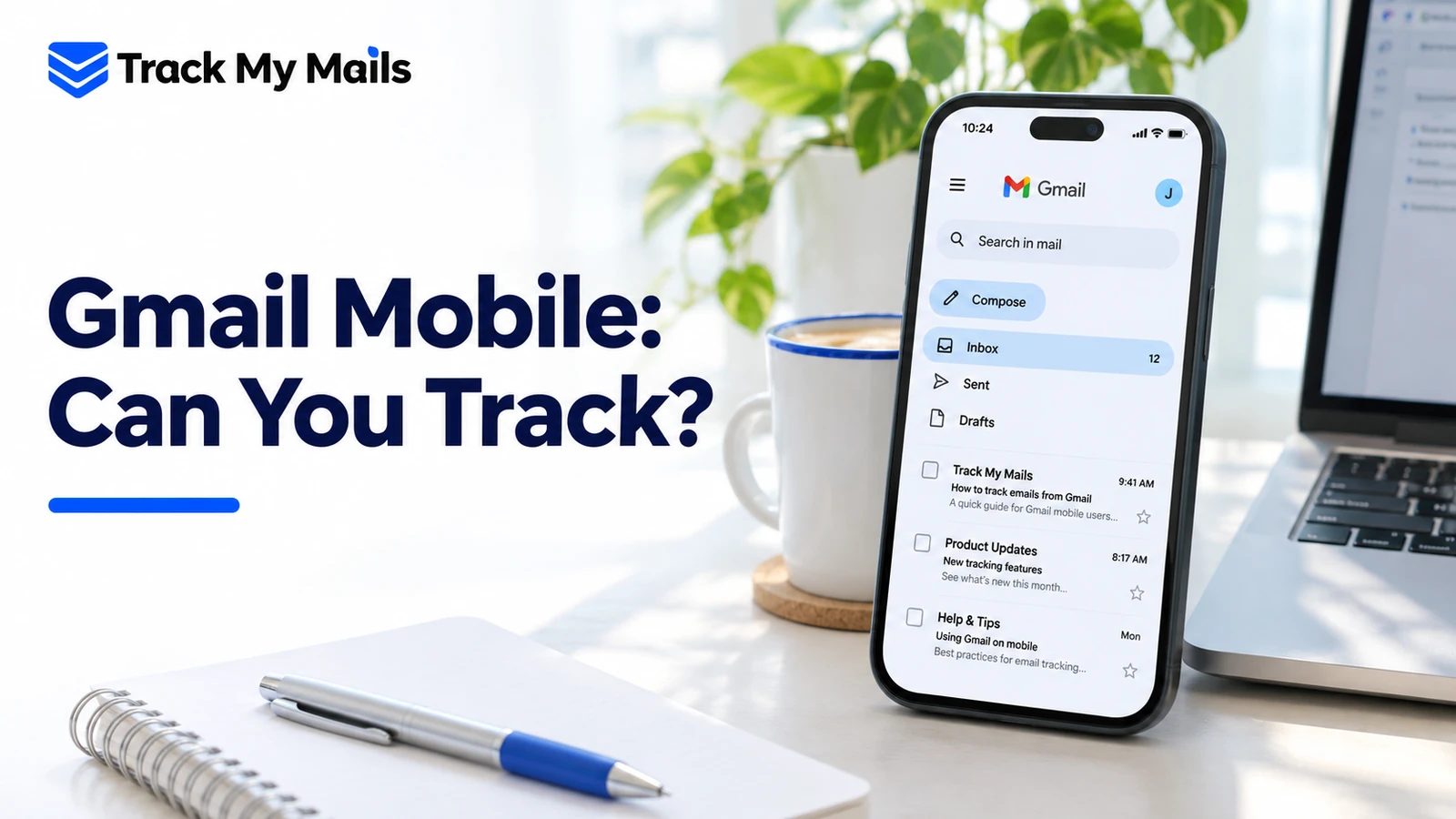
Not for sending. Emails you send from the Gmail phone app are not tracked, because the tracking extension lives in a desktop browser and the phone app has nothing to attach to. What you can do on a phone is read your results: open the dashboard in your phone’s browser or install it as an app, and turn on push notifications.
Why the phone app can’t add tracking
Track My Mails works as a browser extension for Chrome and other Chromium browsers on a computer. It adds the tracking image at the moment you press Send in Gmail. The Gmail app on Android or iPhone does not run browser extensions and offers no way for us to add the image, so an email written there goes out untracked. Chrome for Android does not run desktop extensions either.
This is why the docs list it plainly: only emails sent from Gmail in Chrome on a computer, with the extension connected, are tracked.
What you can do from your phone
You can still follow tracked emails on the go. Everything sent from your computer shows in the dashboard on your phone:
- Open the dashboard in your phone’s browser and sign in with Google
- Install the dashboard as an app on your home screen (the PWA option), which gives you a one-tap shortcut
- Turn on push notifications on Pro and Lifetime plans, so you are alerted when an email is opened, even with the site closed
- Read the timeline for each email: opens, device, clicks and country for clicks
One gotcha: opening your own email on the phone
If you open an email you sent from your computer inside the Gmail phone app, that view can be counted as an open. The extension is not there to recognise you, so the phone looks like any other reader. When you want to check the ticks of your own sent emails, do it on your computer, where your views are filtered out.
A worked example
You write an important quote on your computer with tracking on. You leave for a meeting. Your phone buzzes with a push notification: the client opened the quote. You open the dashboard on your phone, see that the open came from a laptop, and decide to wait for a reply before following up. At no point did you need the Gmail app to be tracked, because the email was sent from the computer.
Common mistakes
These cause most of the confusion about phones:
- Sending from the phone app and expecting a ✓ tick
- Checking your own sent email in the phone app and wondering why it counted as an open
- Expecting push alerts without allowing notifications for the dashboard on the phone
- Installing the extension in a mobile browser that does not support extensions
Putting it into practice
The best mobile setup is simple. Write important emails on your computer, switch on push notifications on your phone for the dashboard, and keep the dashboard on your home screen. That gives you the benefit of tracking wherever you are without needing the Gmail app to cooperate. If you send from your phone in a hurry, accept that the email will be untracked and rely on a reply or a click on a link instead of an open.
Key points to remember
A short summary you can come back to:
- Only emails sent from Gmail on a computer are tracked
- Read your results on a phone through the dashboard
- Push alerts need notification permission on the phone
- Check your own sent mail on a computer, not in the phone app
- Important emails belong on your computer
A workable routine if you live on your phone
If most of your writing happens on a phone, tracking will always have gaps. A practical approach is to write the emails that matter on your computer, and use the phone for monitoring and quick replies. For important outreach, send from the computer so the email is tracked and shows up on both devices.
A reminder that is useful for any phone check: your own views in the dashboard are never counted. Only recipients’ opens are.
Frequently asked questions
Can I install the extension on Chrome for Android?
No. Chrome on Android does not run desktop extensions. Use a computer to send tracked emails.
Will I still get alerts on my phone?
Yes. Pro and Lifetime plans can turn on push notifications on your phone for emails sent from your computer.
Can recipients on mobile phones be tracked?
Yes. If the email was sent with tracking, an open on a recipient’s phone is recorded, and the dashboard shows the device type.
Does the Gmail app show the ✓ ticks?
No. The ticks are drawn by the extension in Gmail on a computer. On a phone, use the dashboard.
Track your next Gmail with context
See sent status in Gmail and review opens, timestamps, and link clicks in one dashboard.
Start with Google