What Happens If I Uninstall the Extension?
Uninstalling stops new tracking but keeps your history. What happens to existing emails and your account.
The short answer
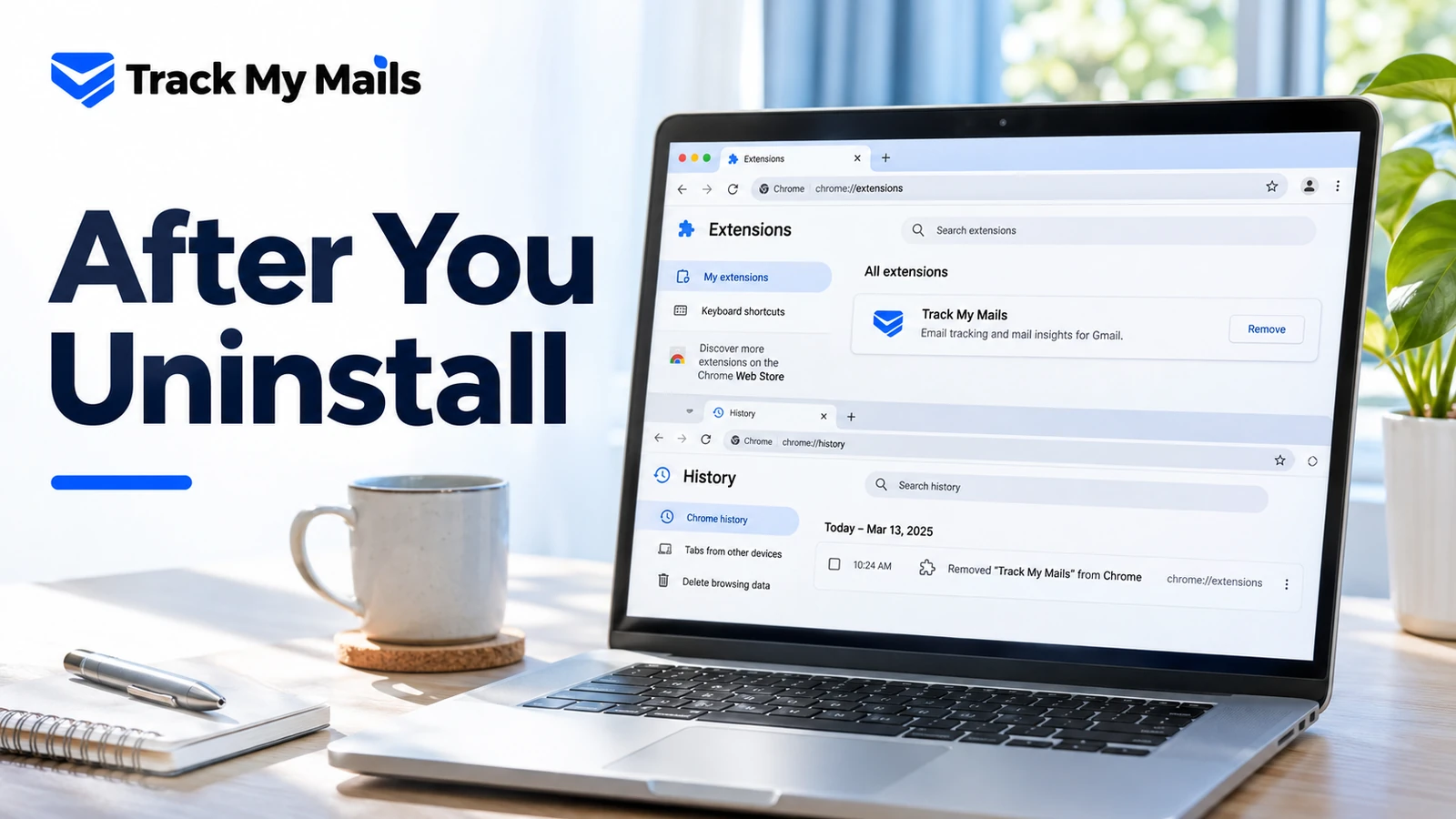
Your account and dashboard stay exactly as they are, emails you already sent keep working, and new emails you send stop being tracked. You lose the ✓ ticks and the badge in Gmail, and nothing else changes until you reinstall.
What continues and what stops
It helps to separate the two parts of Track My Mails: the extension in your browser, and your account on our server.
- Continues: opens and clicks on emails you already sent. The tracking image and tracked links point to our server, so recipients’ activity is still recorded
- Continues: your dashboard, history, reports, push notifications, email alerts and Mili search
- Stops: tracking for new emails. There is no badge next to Send and no pixel is added
- Stops: the ✓ and ✓✓ ticks in your Sent folder and the activity bell in the Gmail header
- Stops: automatic updates of the extension on this computer
Old emails keep reporting activity
A common worry is that removing the extension will “break” emails already out there. It does not. The pixel is part of the sent message, and the link redirects run on our server, so a recipient who clicks a tracked link next week still reaches your page and the click is recorded.
The only exception is emails you delete from the dashboard. Deleting an email removes its tracking record straight away.
Your plan and billing are unaffected
Uninstalling does not cancel a subscription or change your plan. If you want to stop paying, cancel from Plans and billing. You keep Pro until the end of the period you already paid for, and you can resume before then.
Remove the old device if you move
Each account can connect the extension on a limited number of browsers. If you uninstall from one computer to use another, remove the old device in Settings so that you can connect the new one.
A worked example
You uninstall the extension on Monday. On Tuesday a prospect opens the email you sent on Friday. The open is recorded and appears in your dashboard, and your phone gets a push alert if you have push on. On Wednesday you send a new email. It carries no tracking image, shows no tick and never appears in the dashboard, because without the extension nothing registered it. On Thursday you reinstall and reconnect. From that point new emails are tracked again.
Before you uninstall
A short checklist avoids surprises:
- Finish any important sends that need tracking
- Note which emails you still expect replies to, so you can watch them in the dashboard
- Remove the old device from Settings if you are moving to another browser
- Decide whether you want to keep your account or delete it as well
Putting it into practice
Uninstalling is a small, reversible step. Nothing is deleted, nothing is cancelled and nothing in your Gmail is left behind. The extension is only the part of Track My Mails that adds tracking and draws the ticks. Your account, your plan and your history are separate and keep working. If you ever want a cleaner break, you can delete emails or your account from the dashboard, and cancel any subscription from Plans and billing.
Key points to remember
A short summary you can come back to:
- Old emails keep recording opens and clicks
- New emails are not tracked until you reinstall
- Your plan, billing and history are unaffected
- Free the device slot if you are moving computers
- Reload Gmail after reinstalling
Reinstalling
Add the extension from the Chrome Web Store again, click its icon, sign in with Google and press Connect this browser. There is no license key to paste, and your history is waiting in the dashboard. Reload Gmail once so the badge and the ticks appear.
Frequently asked questions
Will my sent emails stop being tracked?
No. Emails already sent keep recording opens and clicks, because the tracking runs on our server.
Do I lose my data if I uninstall?
No. Your data stays in your account until you delete emails or the account itself.
Does uninstalling cancel my subscription?
No. Cancel separately from Plans and billing.
Can I reinstall on the same computer?
Yes. Install, sign in with Google and press Connect this browser. If you see a device limit message, remove the old device in Settings first.
Track your next Gmail with context
See sent status in Gmail and review opens, timestamps, and link clicks in one dashboard.
Start with Google