Does Email Tracking Slow Down Gmail?
Tracking adds a tiny image and does not slow Gmail. How to check if something else is causing delays.
The short answer
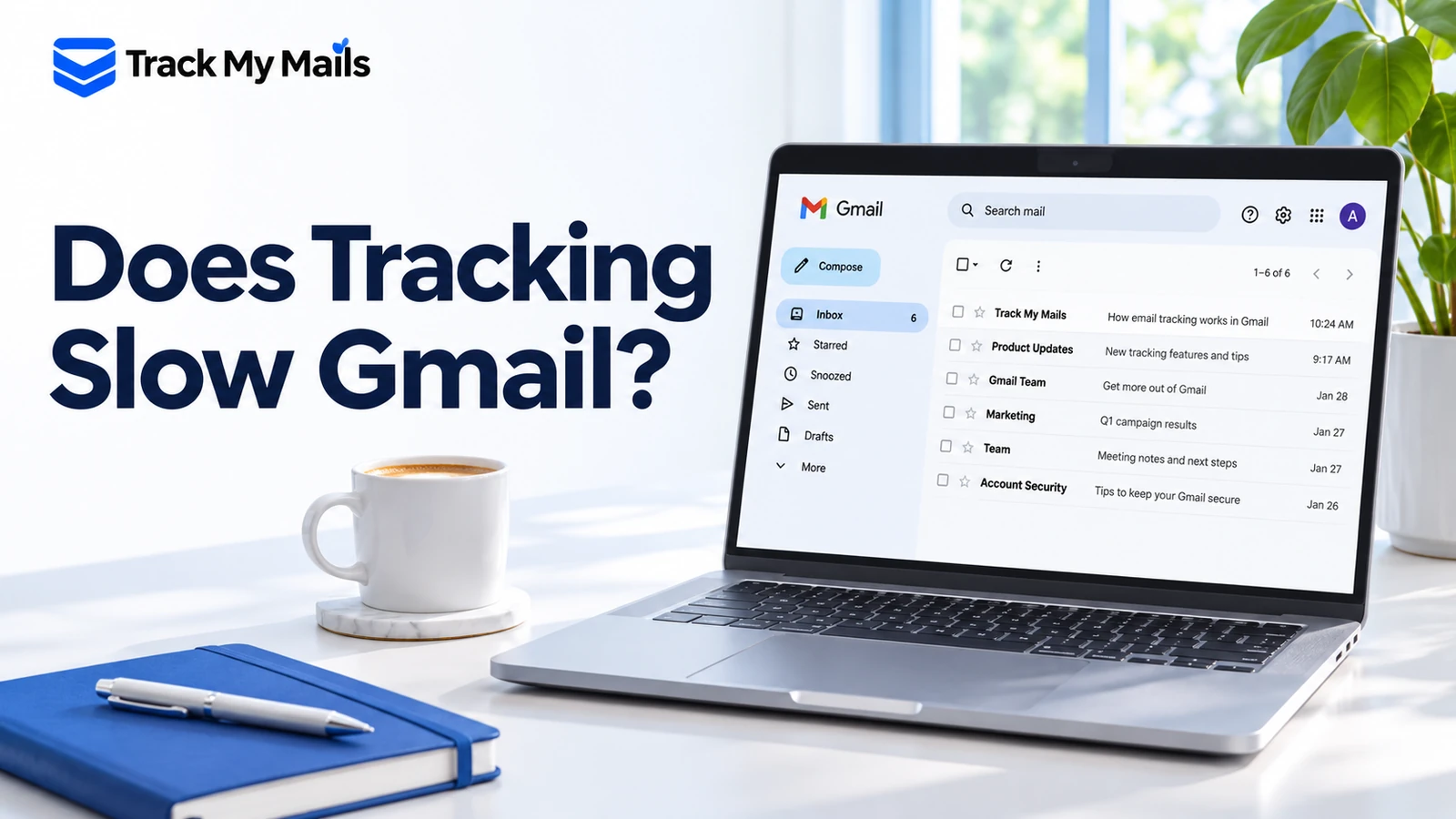
It should not, and for most people you will not notice any difference. The extension runs only on Gmail pages, adds a small badge next to Send, marks your Sent folder with ticks and checks in with our server now and then. It does not read your email text. That said, every extension uses a little memory, so if Gmail feels slow it is worth ruling Track My Mails in or out with a quick test rather than guessing.
What the extension actually does
When you send a tracked email, the extension registers it with our server and places the tracking image in the message. After that it looks at your Sent list so it can draw the ✓ and ✓✓ ticks, and it occasionally asks the server whether anything new happened so it can update them. That is all. It does not scan your inbox, read message bodies, or send your emails anywhere.
Why Gmail can feel slow
Gmail is a heavy web app, and slowness usually has more ordinary causes than one extension:
- Too many extensions running at once, especially several that all work inside Gmail
- A browser that has been open for days with dozens of tabs
- A very large mailbox or a large conversation with many messages
- A slow or unstable network connection
- An outdated browser or extension
A five-minute test
To find out whether Track My Mails is involved, compare Gmail with and without it:
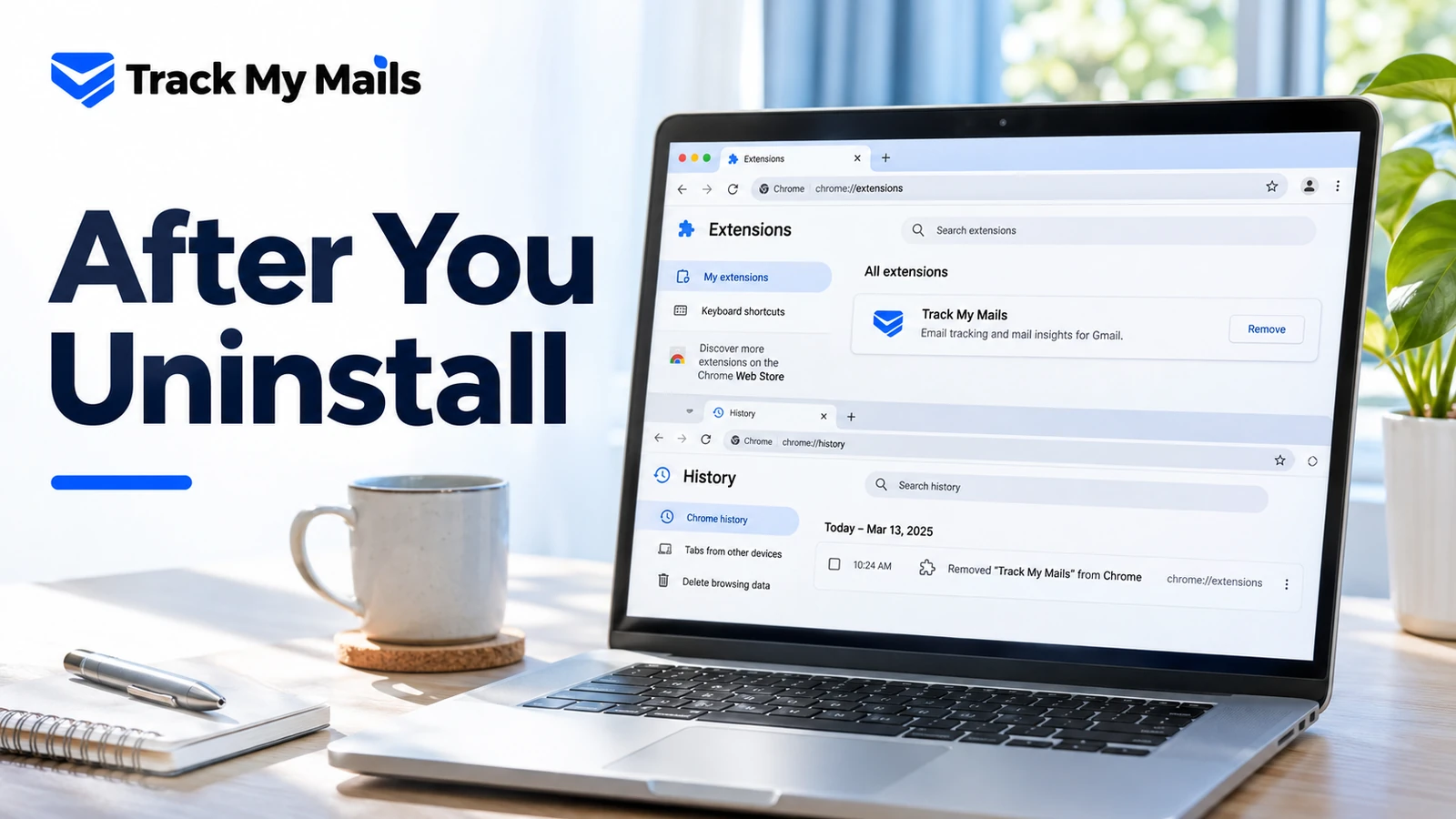
- Open chrome://extensions and switch Track My Mails off. Reload Gmail and use it for a few minutes
- Switch it back on and compare. If the two feel the same, the extension is not the cause
- Open Chrome’s Task Manager (the three-dot menu, then More tools) to see how much memory each tab and extension uses
- Try a fresh Chrome profile with only Track My Mails installed
A worked example
A user notices that Gmail takes several seconds to open large threads and blames the tracker. They switch Track My Mails off in chrome://extensions, reload Gmail and compare. The thread opens just as slowly, so the cause is elsewhere. In Chrome’s Task Manager they find a different extension using far more memory than any other. After removing that one, Gmail is fast again, and Track My Mails stays on. The lesson is to measure before you blame.
A quick checklist
If Gmail feels slow, go through these in order:
- Restart the browser and close tabs you do not need
- Update Chrome and the extensions
- Disable extensions one at a time to find the culprit
- Test on a different network
- Try Gmail in a clean profile
Putting it into practice
If you do find that the extension affects your computer, tell us what you see. A short note with your browser version, the number of tabs and extensions you use and what feels slow is usually enough for us to reproduce it. In the meantime you can keep Gmail fast by leaving tracking off for emails you do not need to follow, by closing old tabs and by keeping both the browser and the extension up to date. Most users never need any of this.
Key points to remember
A short summary you can come back to:
- The extension runs only on Gmail pages in a desktop browser
- It never reads message bodies or attachments
- Test with it on and off before blaming it
- Update Chrome and the extension regularly
- Report a real slowdown with your browser version
Simple ways to keep Gmail quick
Keep the extension up to date, because updates ship from the Chrome Web Store automatically. Close tabs you do not need, restart the browser from time to time, and remove extensions you no longer use. If you still see a slowdown that goes away when only Track My Mails is switched off, tell us from Live support with your browser version and what you were doing, and we will look into it.
Frequently asked questions
Does Track My Mails read my emails?
No. It never reads or stores the text or attachments of your emails. It keeps the recipient, send time, subject line, opens and clicks so you can find your emails in the dashboard.
Does tracking make my emails slower to send?
Registering an email takes a very short moment when you press Send. You should not notice a delay under normal conditions.
Will it slow down Gmail on my phone?
The extension does not run in the Gmail phone app. It works only in Gmail in a desktop browser.
Which browsers are supported?
Chrome, and other Chromium browsers such as Edge and Brave, on a computer.
Track your next Gmail with context
See sent status in Gmail and review opens, timestamps, and link clicks in one dashboard.
Start with Google