How to Choose an Email Tracker for Gmail
Match a Gmail tracker to your needs: features, permissions, data handling and cost at your volume, tested on real emails.
The short answer
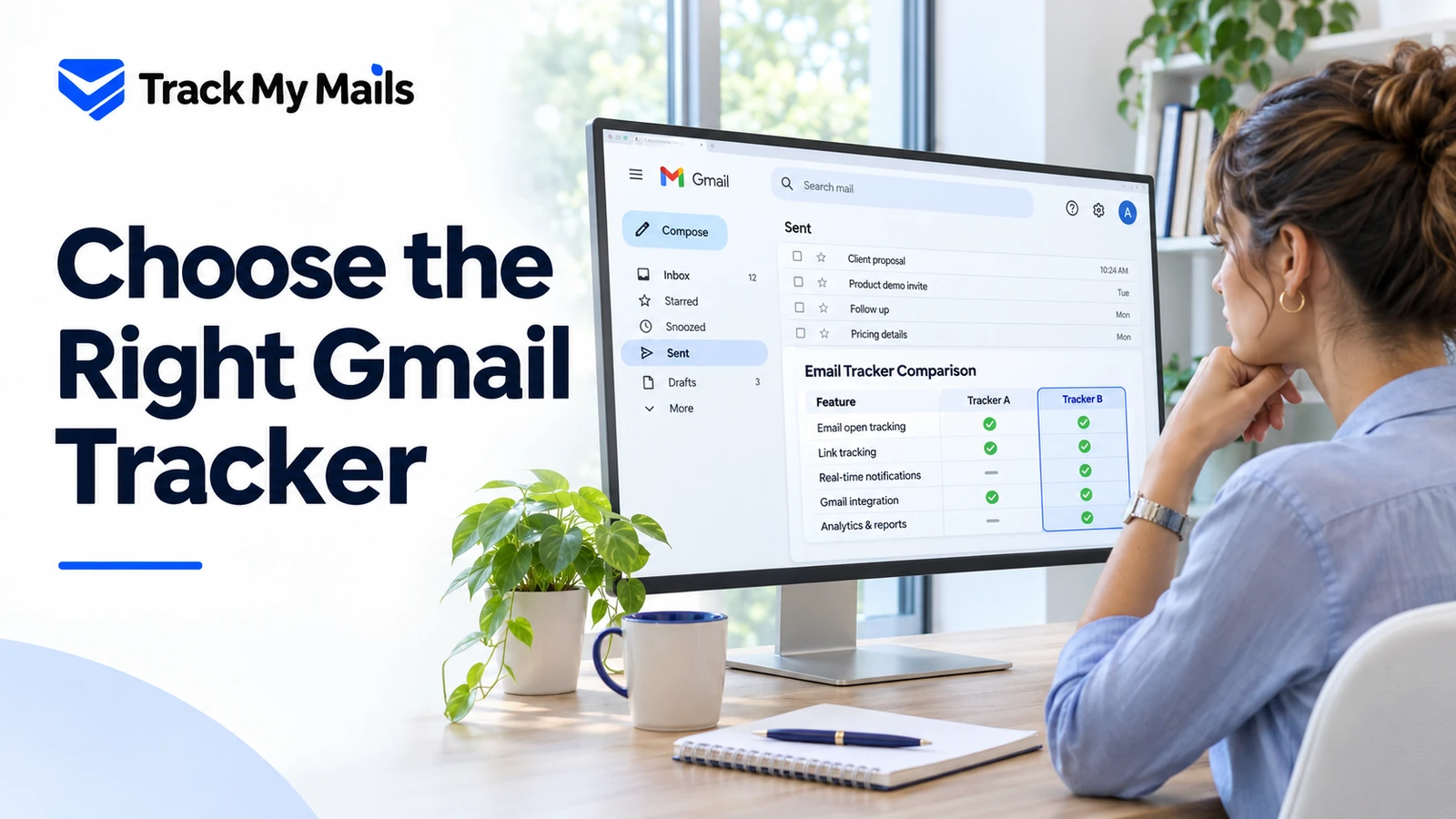
Choose a Gmail email tracker by matching it to how you actually work: which features you need, what it asks permission to do, how it handles your data, what it costs at your volume and whether it behaves well on a test email. List must-haves before you compare brands, then test one or two options on real messages.
Features and prices change, so confirm current details on each vendor's own site before deciding.
Start with your needs
Write down what you would use daily. Typical needs are open alerts, link click tracking, a dashboard, reports, support for several Gmail accounts and team sharing. Separate must-haves from nice-to-haves so a long feature list does not distract you.
Check trust and permissions
Read the extension's permissions and privacy page. Ask what is stored, whether it reads your mail, where data is kept and whether it is sold. In Track My Mails, for example, the body and attachments of your emails are never stored or read.
Be cautious about tools that add a signature or watermark to your emails; no Track My Mails plan does.
- What does the extension need permission to do?
- Is email content stored or read?
- Is data sold or used for advertising?
- Can you delete data easily?
Test it on real emails
Install, send a test to a second address you control and check four things: a tick appears right after sending, your own opens are not counted, an open registers after you read the test, and the dashboard matches Gmail. Also ask what happens with Apple Mail and corporate scanners, since automatic opens are common.
Compare cost at your volume
Look at the free tier limits, what is behind a paywall and whether the plan is limited by emails or by features. Track My Mails Free allows 200 tracked emails a month, and Pro, Lifetime and Team are unlimited for normal use. Consider how many browsers you connect, since device limits differ by plan.
Common mistakes
People tend to trip over the same few things:
- Choosing on price alone
- Skipping the privacy page
- Not testing with a second address before committing
A worked example
A consultant needs open alerts, click tracking on proposal links and a weekly report. She shortlists two tools, reads their privacy pages, installs both on separate days and tests with a second address. The one that filters her own opens and gives clear click data wins, and she cancels the other before the trial ends.
Putting it into practice
Give yourself a one-week trial plan. Install the first candidate, send ten real emails with tracking and check the ticks, the dashboard and the alerts. Note anything annoying. Then repeat with the second candidate, or compare against the notes. Decide by the end of the week and remove the loser so that opens are not double-counted.
Key points to remember
A quick summary you can come back to:
- List must-haves before comparing
- Check permissions and data handling
- Test with a second address
- Compare cost at your own volume
Frequently asked questions
What matters most when choosing an email tracker?
Fit to your workflow, data handling and permissions, accuracy behaviour such as filtering your own opens, and cost at your volume.
Should I avoid trackers that add a signature?
Many people prefer to, since it tells recipients you are tracking and looks less professional. No Track My Mails plan adds a signature or watermark.
Can I try a tracker before paying?
Yes. Track My Mails has a Free plan, and new accounts get 30 days of Pro without a card.
Do I need a different tracker for several Gmail accounts?
Not with Track My Mails. One plan covers every Gmail address used in the connected browser.
Track your next Gmail with context
See sent status in Gmail and review opens, timestamps, and link clicks in one dashboard.
Start with Google