How to Get Real-Time Notifications When an Email Is Opened
Turn on desktop alerts or Web Push so you are told when a tracked email is opened, without drowning in notifications.
The short answer
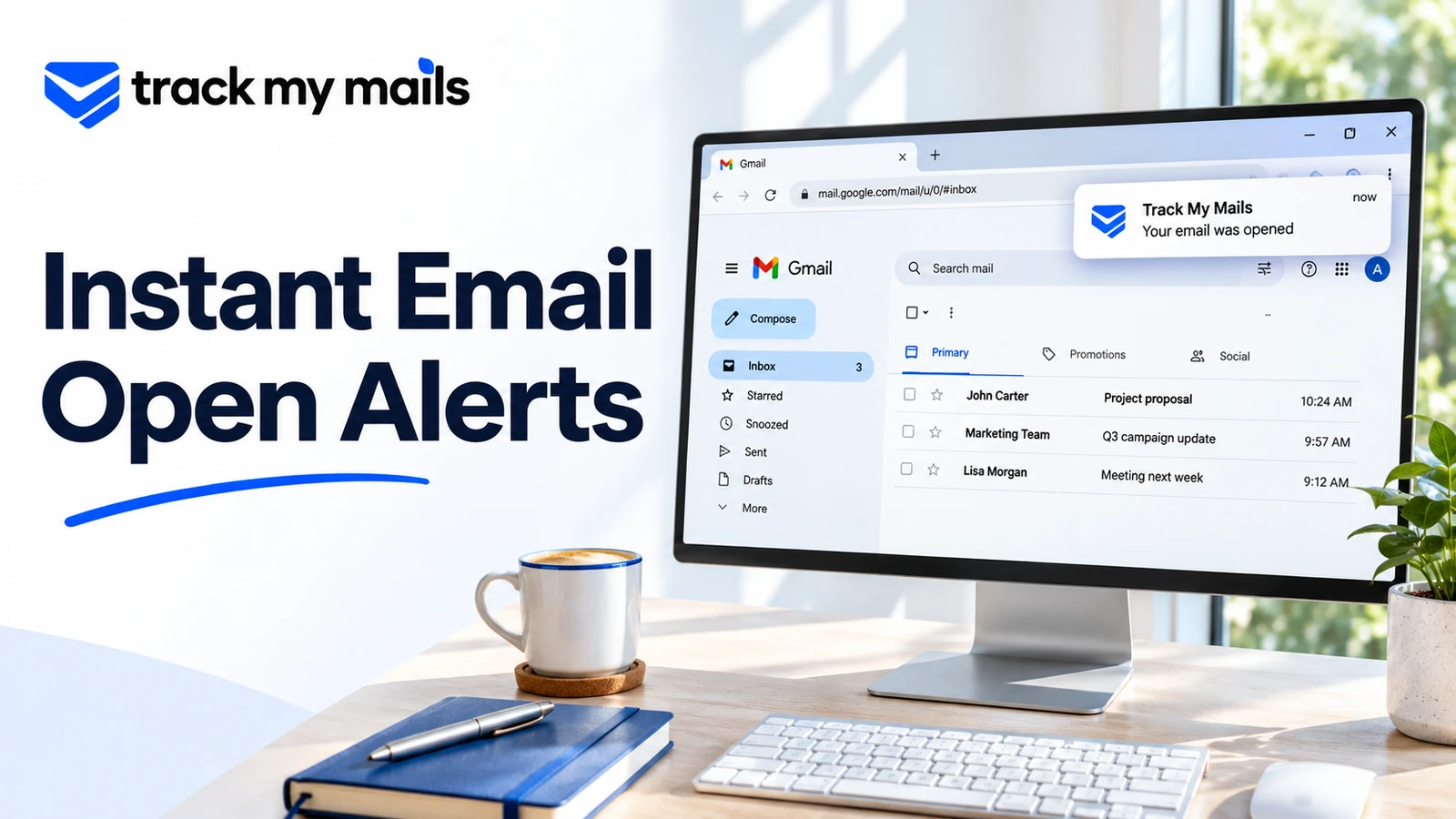
Turn on desktop alerts in Track My Mails Settings and allow notifications in your browser. For alerts when the browser tab is closed, switch on Web Push for that device, or install the dashboard as a PWA. With either on, you are notified when a tracked email is opened or clicked, without watching the dashboard.
Alerts are designed to be sparse, so you are told about real changes rather than every load.
Desktop alerts
Open Settings in the dashboard, enable desktop alerts and accept the browser's permission prompt. While the dashboard is open, it refreshes about every 30 seconds and shows a notification when a new open or click arrives. Hidden tabs poll only when desktop alerts are on without Web Push.
If you do not see notifications, check that the browser has permission for the site and that your operating system is not silencing them.
Web Push for closed tabs
Web Push can notify you even when the dashboard is not open. Enable it on each device where you want alerts. When Web Push is on for a device, desktop alerts are skipped there to avoid duplicates, so you will not get two notifications for one event.
Installing the dashboard as a PWA makes it feel like an app and works well with Web Push. The PWA does not work offline; it only provides the app window and notifications.
How alerts stay useful
Alerts are grouped per conversation, because Gmail loads a whole thread's images at once. Older replies in a thread are suppressed, and push is limited to once per thread per hour. A re-open alert is sent only if at least two minutes have passed since the last one.
Your own opens never trigger alerts. Opens in the first seconds after sending are ignored. For emails that go cold, a daily summary of unopened emails is sent instead of a flood of reminders.
- Max one push per conversation per hour
- Re-open alert needs 2+ minutes since the previous open
- Your own opens never alert you
- Alerts can be switched off while tracking continues
Tuning alerts to your workload
Choose alerts for the emails that deserve interruption, for example proposals or invoices, and rely on the daily or weekly report for the rest. If notifications start to distract you, switch alerts off. Tracking continues and the data waits in the dashboard.
Common mistakes
People tend to trip over the same few things:
- Enabling both desktop alerts and Web Push on the same device and expecting two notifications
- Forgetting the browser permission prompt
- Leaving alerts on for every email and then muting them all
A worked example
You send a contract at 10:00 and keep working. At 11:20 a notification says the email was opened. You glance at the dashboard, see one open and decide to wait. At 15:00 a second alert shows a re-open and a click, so you send a short check-in at 15:30.
Putting it into practice
Start with alerts for a handful of important emails, such as proposals, quotes and contracts, for a week. If they help you act at the right moment, keep them. If they interrupt you, switch them off and rely on the daily or weekly report. The goal is a small number of notifications you actually act on.
Key points to remember
A quick summary you can come back to:
- Allow notifications in the browser first
- Web Push covers closed tabs
- Alerts are grouped per conversation
- Switching alerts off does not stop tracking
Frequently asked questions
Do I get alerts when my browser is closed?
Yes, if Web Push is enabled for that device. Without it, desktop alerts need the dashboard tab open or the PWA running.
Why am I not getting notifications?
Check browser permission for the site, your operating system's notification settings and whether alerts are turned on in Settings.
Will I be alerted for my own opens?
No. Your own opens are filtered and never trigger alerts.
Can I keep tracking but stop alerts?
Yes. Switch alerts off in Settings; opens and clicks are still recorded in the dashboard.
Track your next Gmail with context
See sent status in Gmail and review opens, timestamps, and link clicks in one dashboard.
Start with Google