Single Tick vs Double Tick: What Gmail Tracking Statuses Mean
One tick means sent with tracking, two ticks mean an open was recorded. What each status tells you, and what it cannot.
The short answer
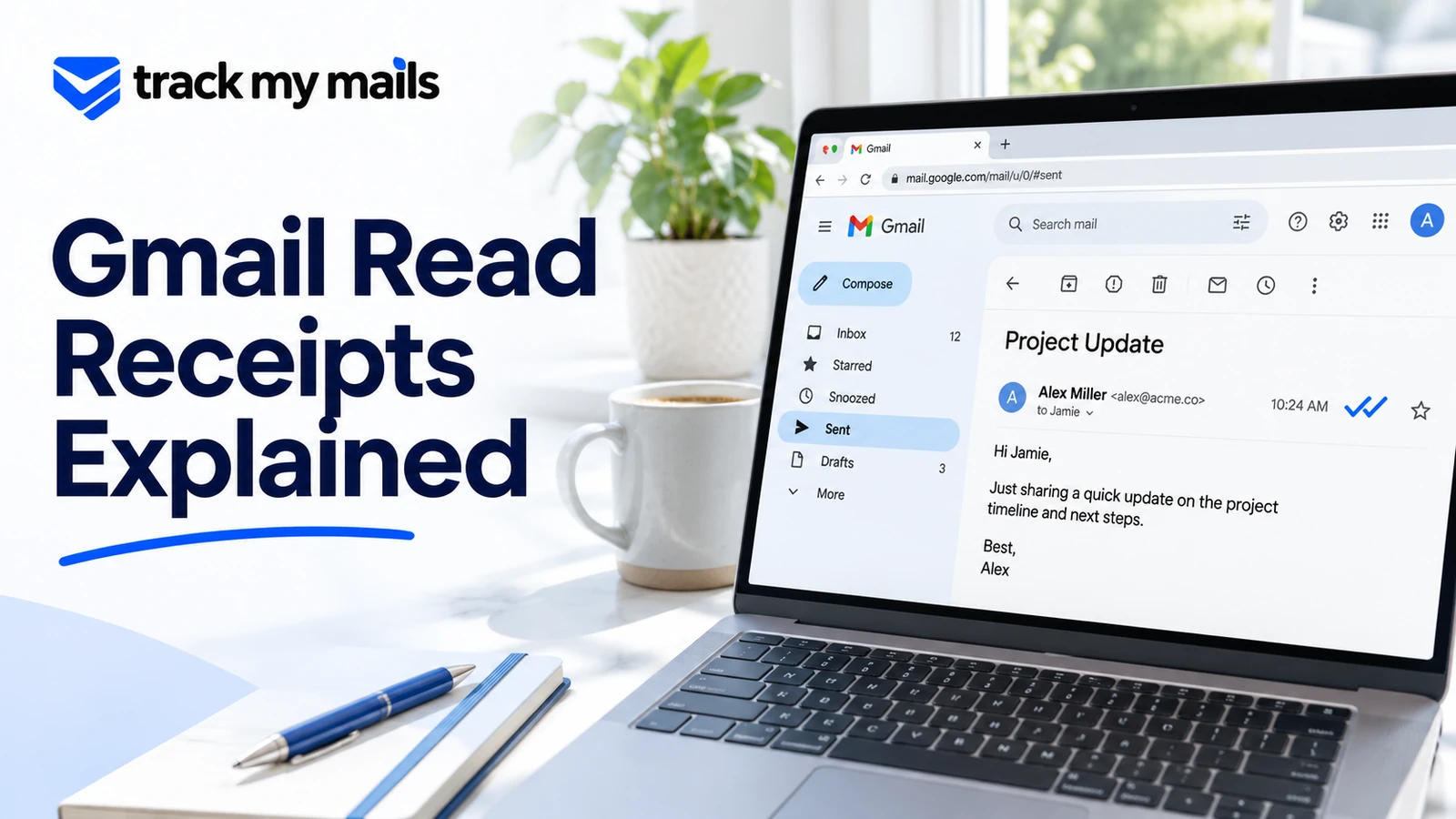
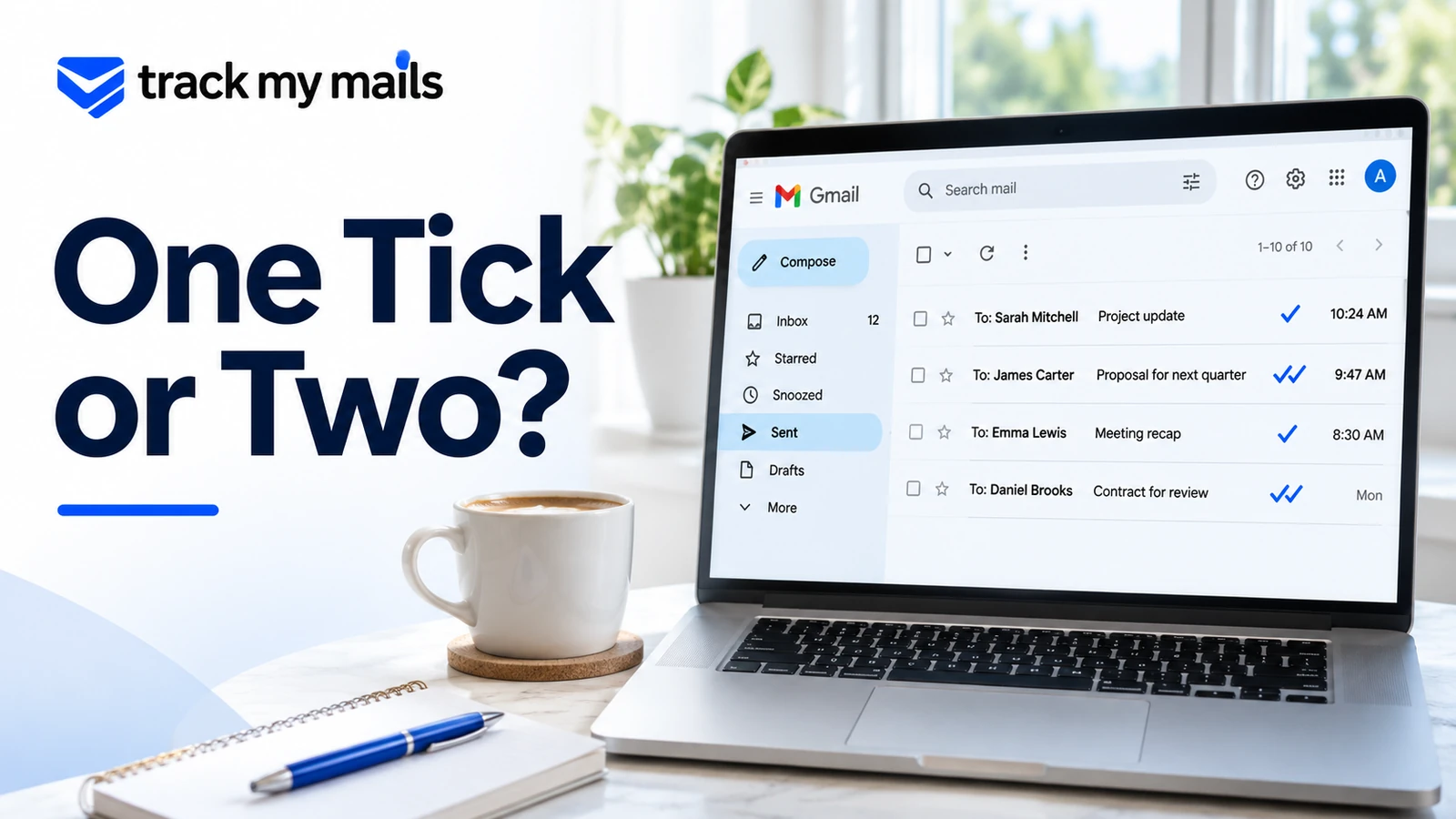
One tick (✓) means Track My Mails registered the email when you sent it and is tracking it. Two ticks (✓✓) mean at least one open has been recorded, and the number next to them is the open count. A single tick is therefore the normal state of a freshly sent email, not a sign that something is wrong.
The ticks appear next to the message in your Gmail Sent folder and in the thread view, so you can read the status without opening the dashboard.
What a single tick tells you
The single tick confirms two things: the extension was connected when you pressed Send, and the email was saved to your dashboard with its tracking image attached. It says nothing about the recipient yet.
Most emails stay on one tick for a while. People read mail in batches, and many email apps do not load images until the reader allows it. A single tick after an hour is ordinary. A single tick after several days is a useful hint that you may want to try another channel or a different subject line.
What a double tick tells you
A double tick means the hidden tracking image was requested at least once. The count next to it shows how many separate opens were recorded. Two opens a few minutes apart are merged into one, so the count reflects genuine returns to the message rather than every tiny reload.
Your own opens are never counted. Opens that happen in the first seconds after you send, which are usually Gmail checking its own copy, are ignored as well. If you see a double tick, someone other than you loaded the message.
Where to find more detail
Click the email in your dashboard to see the timeline: when each open happened, the approximate country, the device type and, if link tracking is on, which links were clicked. Link click tracking is a Pro feature, so on the Free plan you will see opens only.
The dashboard refreshes about every 30 seconds while the tab is visible, so a tick in Gmail and the dashboard can differ by a few seconds. Reloading Gmail brings the ticks up to date.
A worked example
You send a quote at 9:00. At 9:01 the email shows one tick, which is correct. At 11:30 it changes to two ticks with the number 1. At 14:10 the count becomes 2. Reading this, you can say the client opened it mid-morning and came back in the afternoon, so a short follow-up that evening is reasonable. Had the count jumped to 3 within a minute, those would likely be merged or automatic loads, and you would not read much into them.
Common mistakes
People tend to trip over the same few things:
- Reading a single tick as rejection and sending a second email within the hour
- Assuming a double tick means the person read every word
- Forgetting that the mobile app sends untracked emails with no ticks at all
What the ticks cannot tell you
A double tick is not proof that a person read the email. Some mail apps preload images for everyone, and Apple Mail may do so on the recipient's behalf. Those opens are labelled in your dashboard as "Apple Mail (may be automatic)" so you can weigh them accordingly.
A single tick does not prove the email was ignored either. Image blocking is common, and a recipient can read the full text without ever triggering a recorded open.
- ✓ means sent with tracking, nothing more
- ✓✓ means at least one recorded open; the number is the open count
- Neither tick is proof of reading or of lack of interest
- Emails sent from the Gmail mobile app are not tracked and show no ticks
Putting it into practice
Make ticks part of a simple routine. Glance at the Sent folder once in the morning and once in the afternoon, note which important emails are still on one tick, and decide which deserve a nudge. Anything on two ticks with a rising count is worth a closer look in the dashboard timeline. This keeps you calm and stops you from refreshing Gmail all day.
Key points to remember
A quick summary you can come back to:
- One tick: tracked, no open yet
- Two ticks: at least one open, number is the count
- Your own opens never count
- Neither status proves reading
Frequently asked questions
Why does my email still show one tick after a day?
No open has been recorded yet. The recipient may not have opened it, or their email app blocks images, so the tracking image never loaded. Try a short follow-up or another channel if the message is time-sensitive.
Why do I see no ticks at all on an email I sent?
The email was probably sent without tracking: from the Gmail mobile app, from a browser where the extension was not connected, or after Gmail was opened before connecting. Reload Gmail and send a fresh test from a connected desktop browser.
Does the number next to the double tick count my own opens?
No. Your own opens are filtered out, and opens in the first seconds after sending are ignored too. The number counts opens by someone else, with nearby opens merged.
Can a double tick appear without the person reading the email?
Yes. A preview pane, a security scanner or an automatic image load can record an open. Treat the tick as a signal about timing and interest, not as proof of reading.
Track your next Gmail with context
See sent status in Gmail and review opens, timestamps, and link clicks in one dashboard.
Start with Google