The Complete Guide to Email Tracking for Gmail
A complete guide to Gmail email tracking: setup, reading ticks, limits, follow-ups and privacy, with links to deeper articles.
The short answer
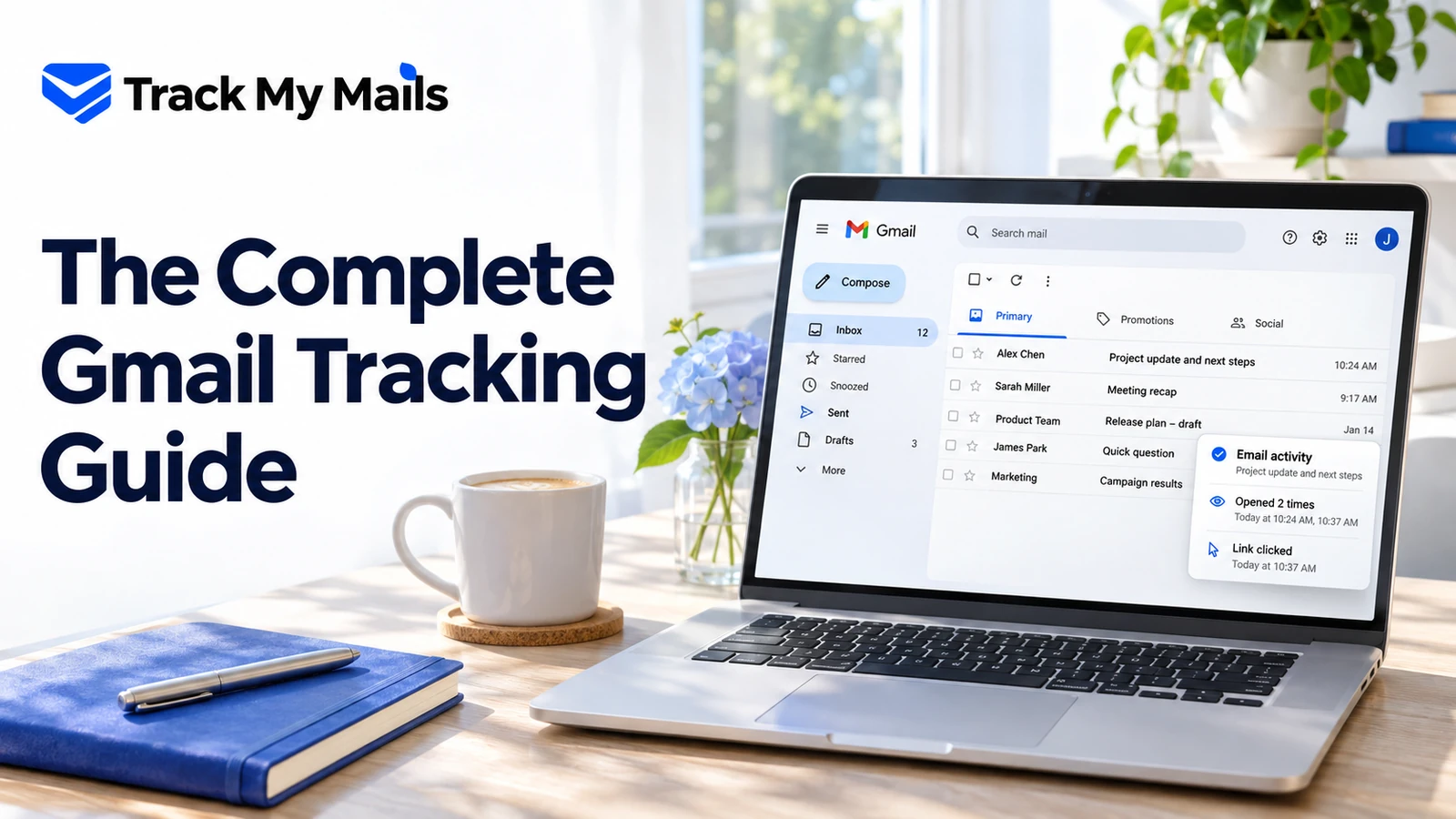
Email tracking for Gmail works by adding a tiny hidden image, and optionally redirected links, to messages you send. When the recipient's email app loads the image or the recipient clicks a link, you get a signal. With Track My Mails you install a Chrome extension, sign in with Google, press Connect and send as usual; ticks in Gmail and a dashboard show what happened.
This guide walks through setup, reading the data, limits and good habits, with links to deeper articles.
Getting started
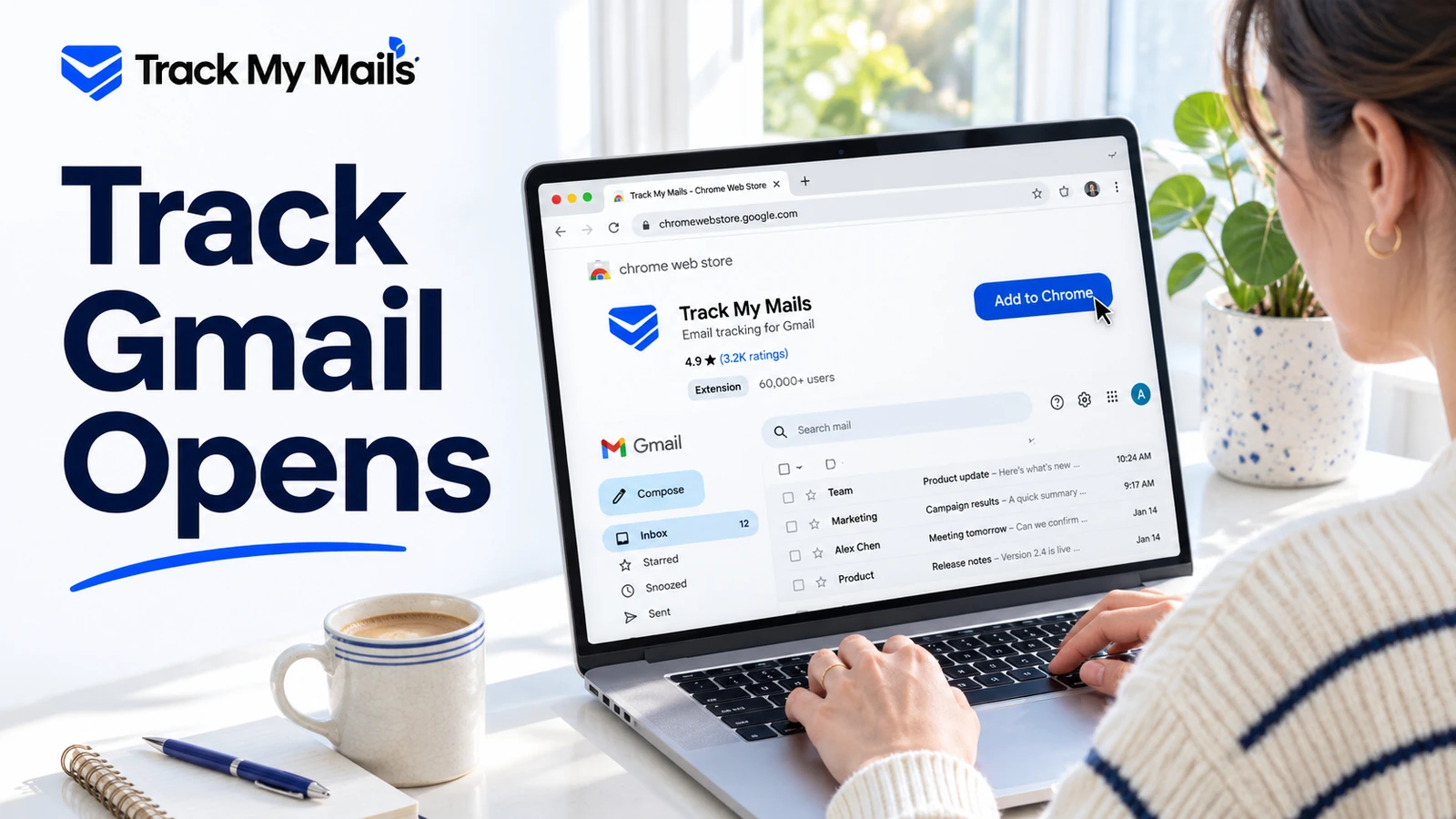
Add the extension from the Chrome Web Store on a desktop Chromium browser, open Gmail, sign in with Google and press Connect this browser. There is no key to paste. New accounts receive 30 days of Pro without a card, then the Free plan continues with 200 tracked emails a month. Paid plans are unlimited for normal use.
The extension works on desktop Chromium with Gmail only. Emails sent from the Gmail mobile app are not tracked.
Reading the signals
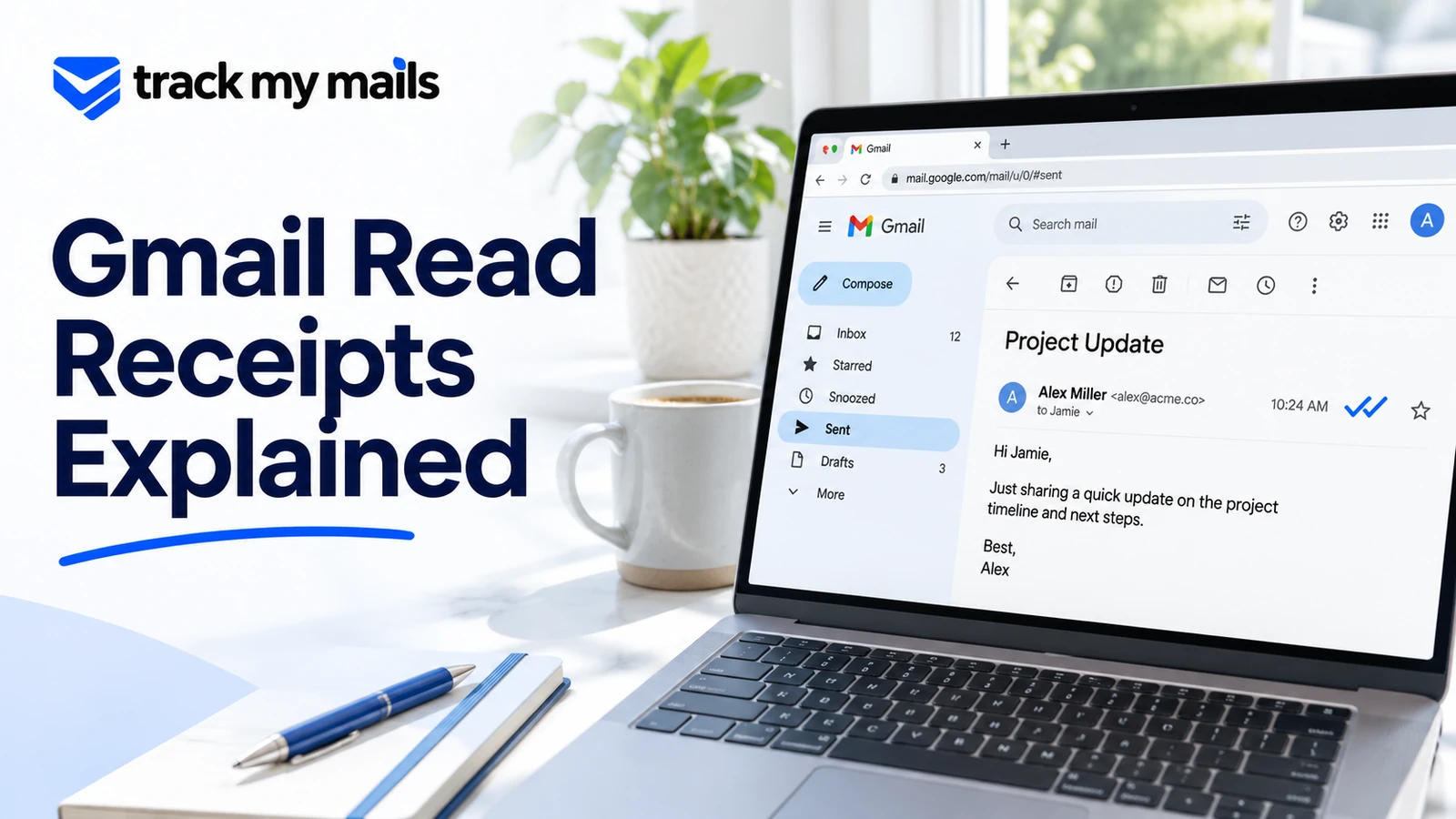
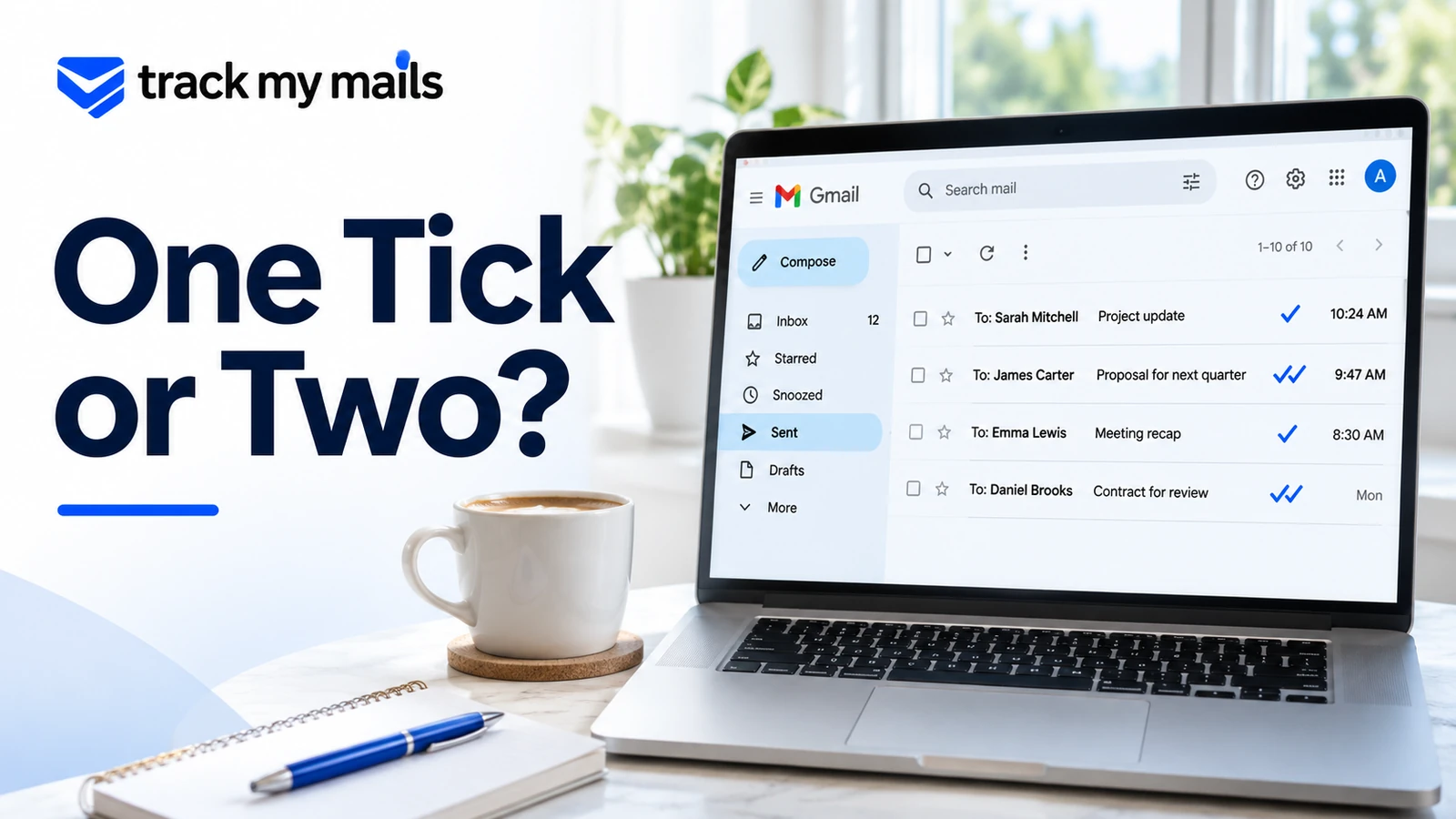
One tick means the email was sent with tracking. Two ticks mean at least one open was recorded, with the count beside them. Your own opens are never counted, opens in the first seconds after sending are ignored and nearby opens are merged. In the dashboard you can see times, approximate country, device type and, on Pro, link clicks.
A third signal is the hot lead marker, shown after three or more opens, which highlights messages worth a closer look.
Know the limits
Opens are not proof of reading. Blocked images hide real reads, and automatic loads such as security scanners or Apple Mail create opens that no person made; Apple ones are labelled "Apple Mail (may be automatic)". Mailto, tel and attachment links are not tracked, and plain text mode removes the tracking image entirely.
Use open data for timing and combine it with clicks and replies for a clearer picture.
- Desktop Chromium and Gmail only
- 1 browser on Free, 2 on Plus, 3 on Max
- Confidential mode is not supported
- Link click tracking is a Pro feature
Using the data well
Decide in advance what a signal means for you. An open after several days can justify a short nudge. A click on a pricing link is stronger than an open. Never mention that you saw an open; reference the value you offered instead.
Review your sent emails weekly rather than watching the dashboard all day, and turn on only the alerts that deserve interruption.
Privacy and trust
We store recipients, send times, opens, clicks and subjects, never the body or attachments. Tell recipients about tracking where the law or good practice expects it, and switch tracking off for sensitive messages. See the dedicated articles on legality and on stored data for detail.
Common mistakes
People tend to trip over the same few things:
- Installing on a mobile browser or non-Chromium browser and expecting it to work
- Sending a test from the same account and expecting an open
- Turning on every alert and then ignoring all of them
Where to go next
If opens do not appear, work through the troubleshooting article. If you are comparing tools, read the guide on choosing a Gmail tracker. For follow-ups, start with the article on when to send a follow-up using open data.
Putting it into practice
Follow a simple first-week plan. Day one: install, connect and send a test to a second address. Days two to four: use tracking on real emails and learn the ticks. Day five: open the dashboard and review opens and, if on Pro, clicks. Day seven: set the alerts you really want and decide a follow-up rhythm. By then the tool is part of your routine.
Key points to remember
A quick summary you can come back to:
- Desktop Chromium and Gmail only
- Ticks: sent, then opened with a count
- Opens are signals, not proof of reading
- Be open about tracking and keep data minimal
Frequently asked questions
Is Track My Mails free?
There is a Free plan with 200 tracked emails a month, and new accounts get 30 days of Pro without a card. Paid plans are unlimited for normal use.
Which browsers and Gmail accounts work?
Desktop Chromium browsers with Gmail. One plan covers every Gmail address you use in the connected browser, with a limit on how many browsers can be connected.
Does tracking add a signature to my emails?
No. No plan adds a signature or watermark to your emails.
Why was my email not tracked?
Usually it was sent from the mobile app, or the browser was not connected when you sent. Reload Gmail and send a new test from a connected desktop browser.
Track your next Gmail with context
See sent status in Gmail and review opens, timestamps, and link clicks in one dashboard.
Start with Google